Arduino HC-SR04 with LCD I2C.
In this tutorial we will learn how to use Ultrasonic Sensor HC-SR04 and LCD I2C.
Parts or tools you will need
Arduino Uno
Ultrasonic Sensor HC-SR04
LCD (Liquid Crystal Display) I2C 16x2
Breadboard
Some male and female wires.
Libraries
What is LCD I2C (Liquid Crystal Display with I2C Bus)
LCD I2C is quite a popular LCD module. The main reasons are:
How to use Ultrasonic Sensor HC-SR04
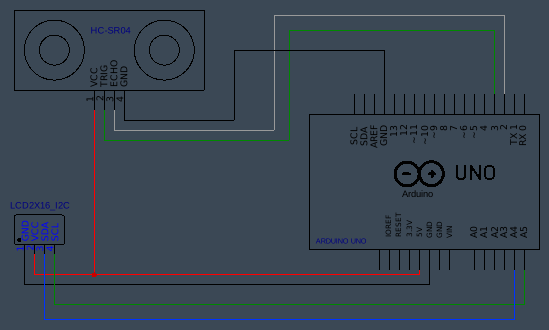
Connect HC-SR04 module:
| HC-SR04 module | Arduino Uno |
|---|---|
| Vcc | 5V |
| Trig | Digital pin 3 |
| Echo | Digital pin 2 |
| GND | GND |
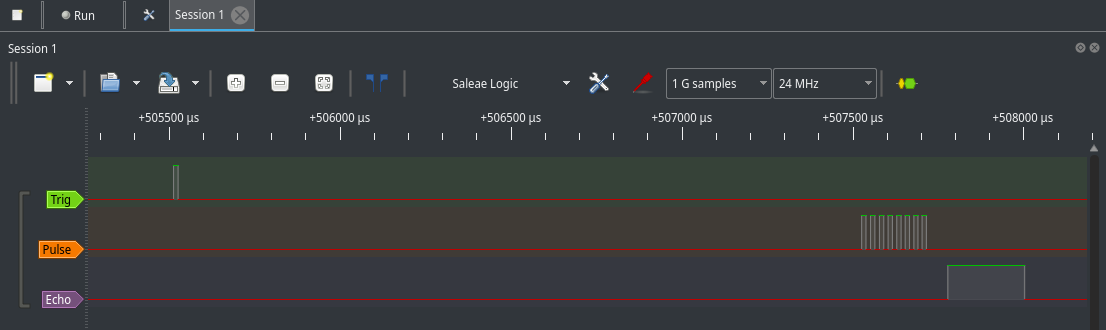
To initialize HC-SR04 module send 10µs signal to Trig pin and in same time start counting time.
HC-SR04 module will make 8 pulse sound waves with frequency around 40MHz and send it with transmitter.
As waves bounce back from object to the receiver it will turn on Echo pin. In the same time stop mesuring time.
Now you can calculate distance with formula "d=(v * t/2)".
HC-SR04 Code
int echoPin = 2;
int trigPin = 3;
float d;
float t;
void setup(){
Serial.begin(115200);
pinMode(trigPin, OUTPUT);
pinMode(echoPin, INPUT);
}
void loop(){
digitalWrite(trigPin, LOW);
delayMicroseconds(2);
digitalWrite(trigPin, HIGH);
delayMicroseconds(10);
digitalWrite(trigPin, LOW);
t = pulseIn(echoPin, HIGH);
d = t * 0.343 / 2;
Serial.print("Distance: ");
Serial.print(d);
Serial.println(" mm.");
delay(1000);
}
Pulseview
For better visualization, this is a screenshot of a digital pins with logic analyzer.
Circuit diagram
Now we can connect the circuit according to the following circuit:
Code
Code explanation
#include <HC-SR04.h>
#include <Wire.h>
#include <LiquidCrystal_I2C.h>
So that you wouldn't write everything by yourself, you first need to import these libraries.
#define echoPin 2
#define trigPin 3
LiquidCrystal_I2C lcd(0x27, 2, 1, 0, 4, 5, 6, 7, 3, POSITIVE);
HCSR04 hc(echoPin, trigPin);
In this section for convenients we define echoPin, trigPin. Even if these values are only used
once it is good practice to define them (Note that this we could use too:
void setup(){
Serial.begin(115200);
lcd.begin(16,2);
lcd.backlight();
lcd.clear();
}
In the setup function the first think that we do is begin Serial communications at 115200 bits per second. Then we begin lcd with number of rows and columns, turn on the backlight and clear the display.
void loop(){
lcd.setCursor(0, 0);
lcd.print(hc.distance());
Serial.println(hc.distance());
lcd.setCursor(14, 0);
lcd.print("mm");
lcd.setCursor(0, 1);
lcd.print(hc.distanceInch());
lcd.setCursor(12, 1);
lcd.print("inch");
delay(200);
}
In loop function you can find code that is responsible for showing the correct values on the display.
To achieve this we need to use
Table of contents